If TradingView Bar Replay is not working, the first thing to figure out is what exactly is broken.
TradingView officially blocks Bar Replay on certain chart configurations, including spread charts, unsupported non-traditional chart types, and charts converted into another currency. Historical data availability can create a completely different issue: Replay works, but the date or timeframe you want is unavailable.
Let’s start looking into and diagnosing the issue that you may be facing. Use the table below to identify the symptom first rather than randomly changing any settings.
1. Quick Diagnosis: Why is Bar Replay Not Working?
| What You See | Most Likely Cause | What to Check First |
|---|---|---|
| Can’t find the Bar Replay button | Looking in the wrong part of the chart interface | Check the top panel of TradingView Supercharts for the rewind-style Replay button |
| Replay button is visible, but clicking it does nothing / no Replay panel appears | Unsupported chart or symbol configuration | Check whether you’re using a spread, unsupported chart type, or converted currency |
| Replay opens, but you cannot select an older date | Historical data is unavailable for that symbol, timeframe, or plan | Try a higher timeframe or a more recent starting point |
| You see “Data point unavailable” | TradingView does not have accessible lower-timeframe data that far back | Move forward in history or change timeframe |
| Bar Replay works, but Replay Trading is missing | Replay Trading and Paper Trading are being confused, or the historical trading panel is not open | Look for Replay Trading rather than the normal Paper Trading account |
| Replay worked before but your current chart does not | Something about the current chart configuration may be unsupported | Test Replay on a standard candlestick chart using a normal individual symbol |
| Everything appears correct but Replay still fails | Possible browser, desktop-app, or TradingView-side issue | Reload TradingView and test the feature on a plain supported chart |
The fastest way to troubleshoot why TradingView’s Bar Replay feature isn’t working is to simplify the chart first. Open a normal symbol, switch to standard candlesticks, use the symbol’s default currency, and try Bar Replay again.
If it works there, Bar Replay itself probably isn’t the problem. Something about the original chart, symbol, timeframe, or available historical data is preventing Replay from working correctly. From here, we can narrow down each of those causes individually.
Read: TradingView Bar Replay: Complete Guide for Beginners, What It Is, How to Use and Best Practices for Practical Setups2. Where is the Bar Replay Button in TradingView?
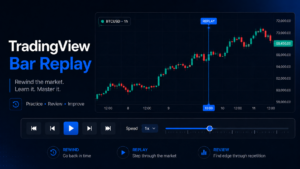
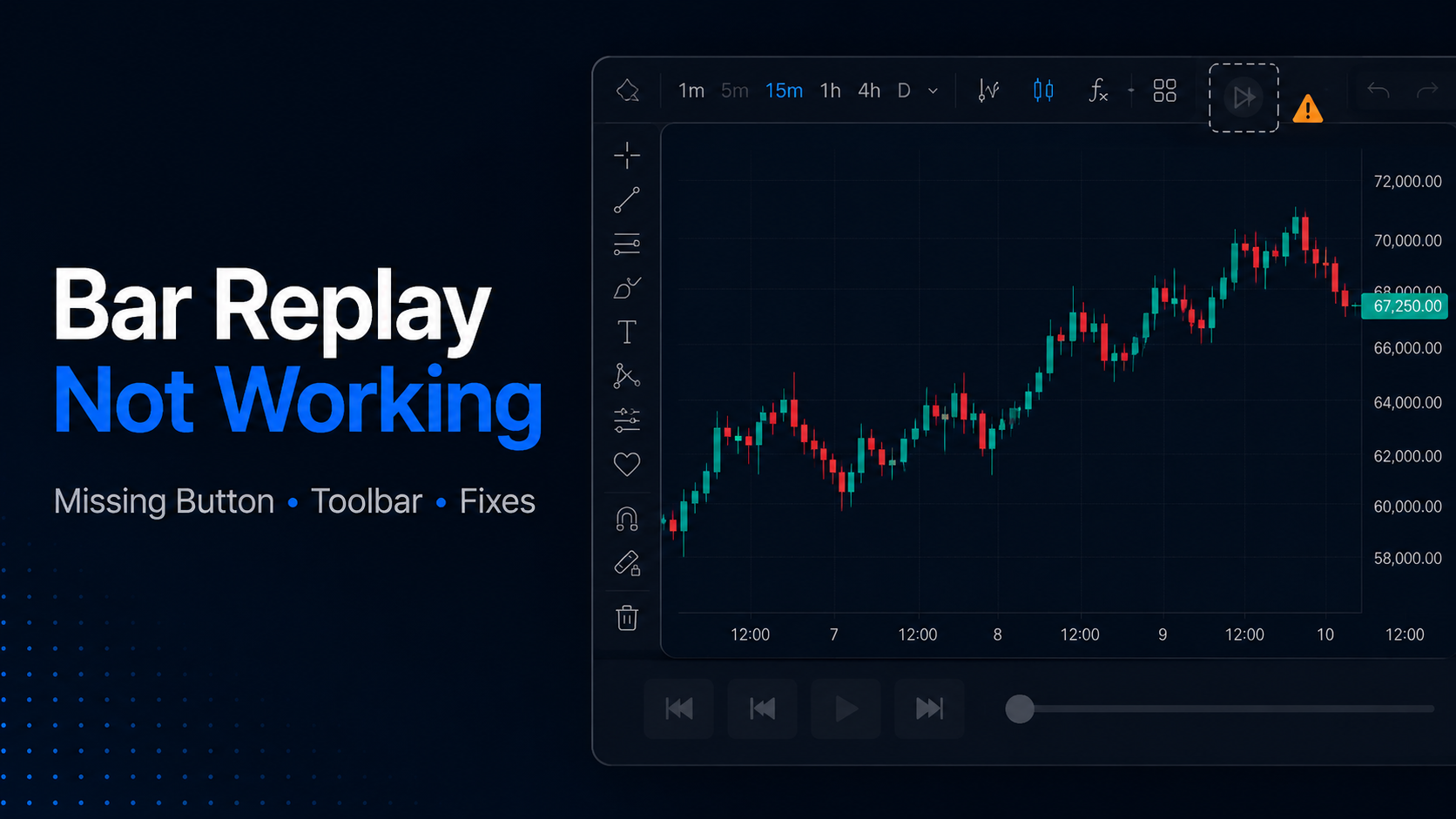
If you simply cannot find Bar Replay, look at the top toolbar of TradingView Supercharts. The button uses the familiar rewind-style icon. Clicking Bar Replay should open the Replay panel and put the chart into starting-point selection mode. From there, you choose the historical bar where you want the replay to begin.
📌 Screenshot suggestion: Add a tightly cropped TradingView screenshot here with the Bar Replay button highlighted. This will probably answer the question faster than the paragraph itself.
If the button is visible but clicking it does not open the Replay panel, then you are dealing with a different problem. If the button is visible but the Replay panel does not appear, TradingView says an unsupported chart or symbol configuration is the most likely cause.
3. Replay Button is Visible but the Replay Toolbar Doesn’t Open
TradingView officially lists three main reasons this happens.
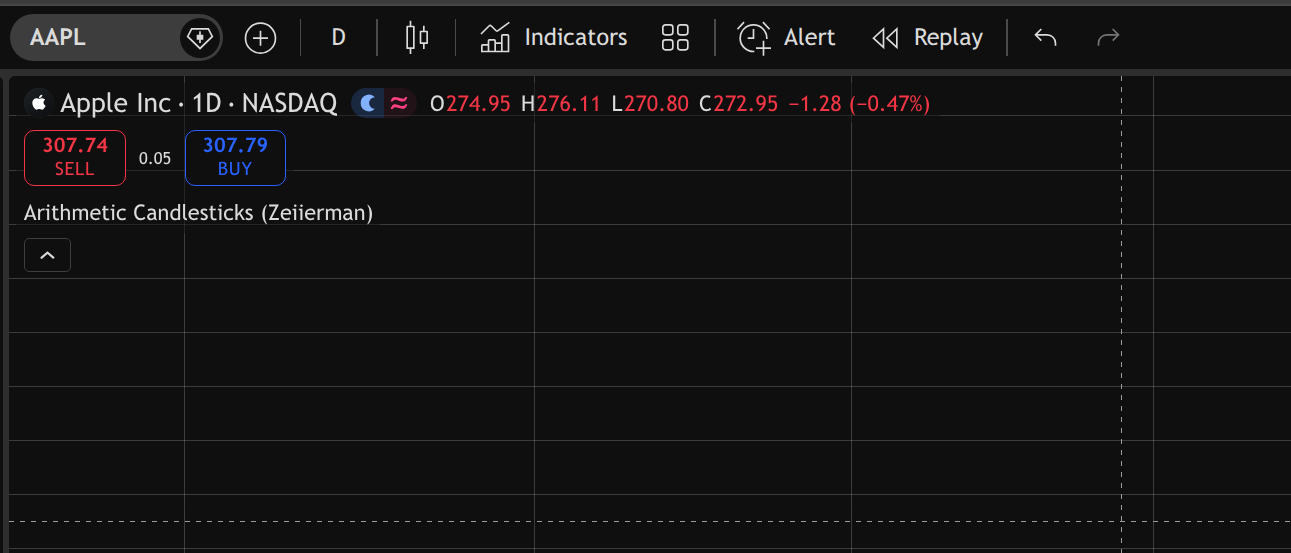
Check 1: You’re using a spread or formula chart.
A chart created from multiple symbols, such as AAPL/MSFT, is considered a spread/formula chart. Bar Replay does not currently support these. Switch to a normal individual symbol and try again.
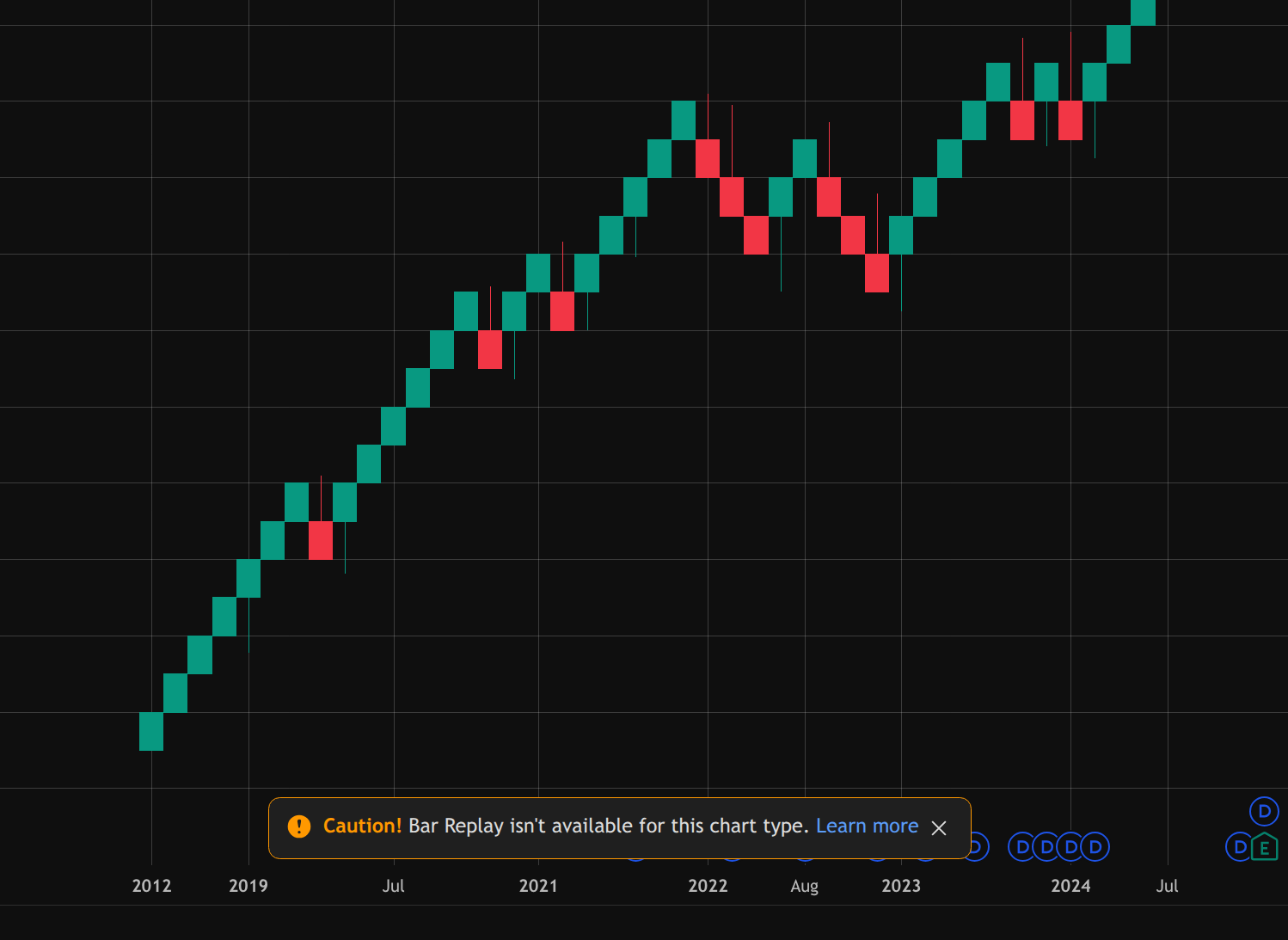
Check 2: You’re using an unsupported chart type.
Bar Replay does not support several non-traditional charts, including:
- Renko
- Kagi
- Point & Figure
- Range
- Line Break
- Volume Footprint
- Time Price Opportunity
Switch temporarily to regular candles or bars. If Replay appears, you have found the problem.
Check 3: The chart has been converted into another currency.
Bar Replay is unavailable while TradingView’s Converted Currency mode is active. Return the symbol to its original/default currency and reopen Replay. A useful diagnostic trick is therefore to open the same symbol using standard candlesticks and its default currency. If Bar Replay works there, the feature itself is fine, but the original chart configuration was the issue.
Read: Manual Backtesting vs Automated Backtesting vs Paper Trading4. Bar Replay Opens, but the Historical Date Doesn’t Work
If Bar Replay opens normally but refuses to go as far back as you want, then that’s a separate issue. The feature is likely not broken, but you’re simply hitting the historical-data limit. The amount of replayable history depends on:
- Your TradingView plan
- The symbol
- The timeframe
- The type of historical data available
This is why a daily chart might let you go much further back than a 1-minute chart. TradingView may automatically move you to the earliest available bar if your selected starting point is too far in the past. If you switch from a higher timeframe to a lower one and that lower-timeframe data does not exist that far back, you may instead see “Data point unavailable.”
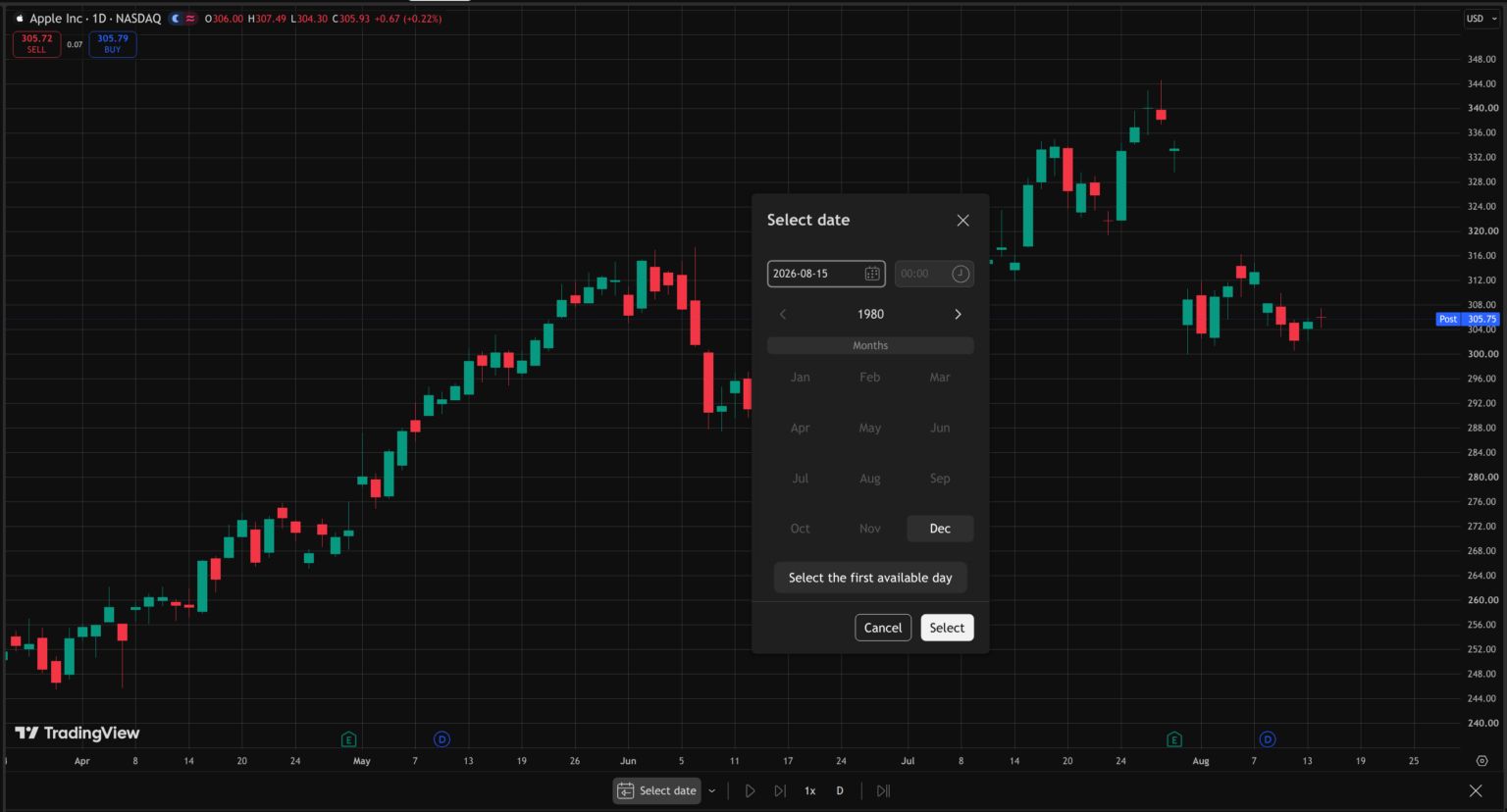
A quick way to confirm your available history is to open Select date → Select the first available day. That shows you where Replay can actually begin for the current symbol, interval, and subscription. If this is your issue, there is nothing to repair locally. You need either a more recent starting date, a different timeframe, or access to deeper historical data.
We cover the exact plan-by-plan limits separately in our TradingView Bar Replay Data Limits guide.
5. Bar Replay Works, but Replay Trading Is Missing
This one is easy to misunderstand because Bar Replay, Replay Trading, and Paper Trading are three separate things. Bar Replay controls historical price playback. Replay Trading is the simulated trading mode designed specifically for that historical Replay session. Paper Trading follows current market prices.
TradingView’s current workflow is to open Replay Trading and then launch Bar Replay. You can place simulated orders against the replayed market after selecting the historical starting point. So if Bar Replay is working but you cannot trade on those historical candles, first make sure you are looking for Replay Trading instead of your normal Paper Trading account.
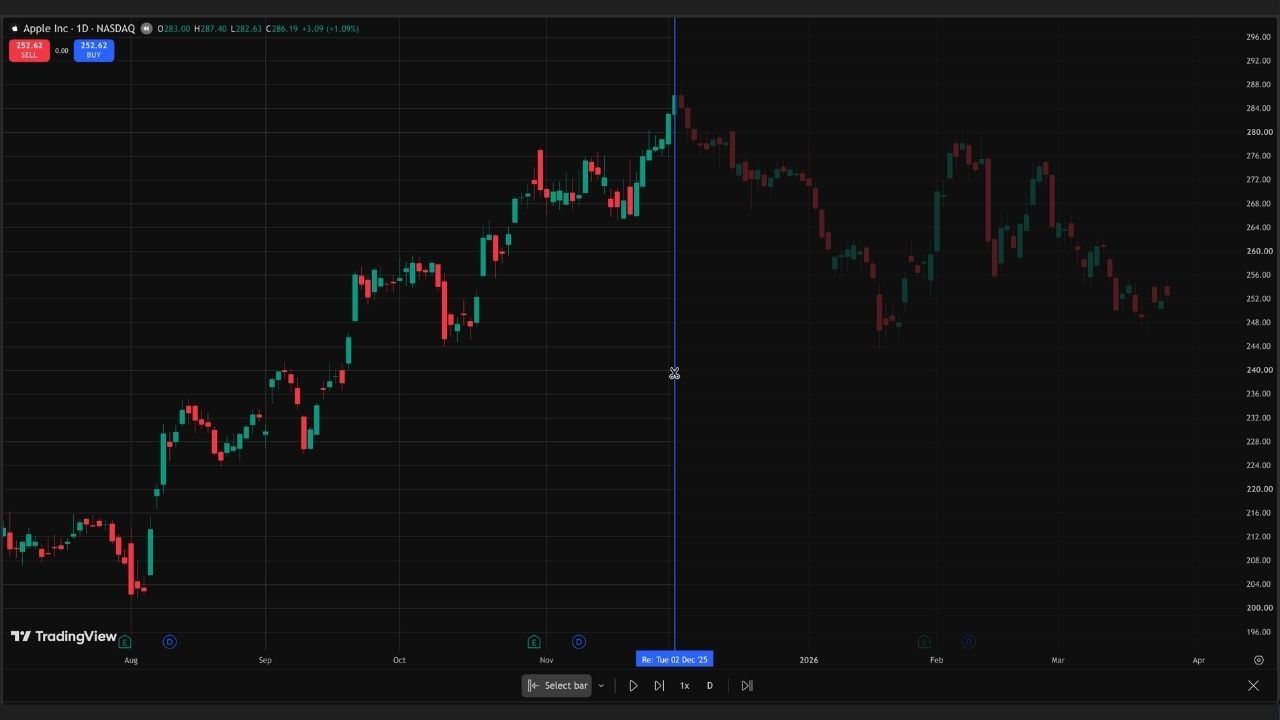
Do not try to use Paper Trading or a connected broker as a workaround. TradingView states that those orders continue to use real-time prices even when the chart itself is showing historical Replay data.
If the actual Replay Trading panel/tab is absent from your interface, TradingView’s public documentation does not currently provide a definitive troubleshooting list for that specific symptom. At that point, I would avoid guessing: reload the workspace, test Bar Replay on a normal supported chart, and if the Replay Trading option is still absent, check with TradingView Support.
6. Everything Looks Supported, but Bar Replay Still Won’t Work
If you have already confirmed that you are using a normal symbol, supported chart type, default currency, and available historical data, the problem may be with the TradingView session rather than the chart itself.
Start with the simplest test:
- Open a standard candlestick chart on a normal individual symbol.
- Reload TradingView.
- Try Bar Replay again.
- If you use TradingView Desktop, relaunch the app.
TradingView also provides a Clear cache option in Desktop under: Settings → Service → Clear cache. Though, remember to update the TradingView Desktop application to the latest version before you attempt clearing cache. Clear the cache and relaunch the application. For browser users, testing TradingView in a private/incognito window can help determine whether cached data, cookies, or an extension is contributing to the problem.
Finally, check TradingView’s official status page. Platform-wide chart or trading issues do occasionally occur, and no amount of changing your own settings will fix an outage on TradingView’s side.
The useful diagnostic here is simple: If Bar Replay works on a clean, standard chart but not on your original chart, the problem is probably specific to that chart configuration. The next sensible step is TradingView support if it fails everywhere after these checks.
7. Still Not Working? Try This Checklist
Here’s a quick checklist to run through once:
- Use a normal individual symbol rather than a spread/formula
- Switch to standard candlesticks or bars
- Return the chart to its default currency
- Confirm the requested historical date is actually available
- Try a higher timeframe or more recent starting point
- Make sure you are not confusing Replay Trading with Paper Trading
- Reload TradingView or relaunch Desktop
- Clear the Desktop cache if necessary
- Check TradingView’s official service status
If Bar Replay still fails on a plain supported chart after all of these checks, I would stop troubleshooting locally and contact TradingView Support with the symbol, timeframe, chart type, device/app, and a screenshot of what happens when you click Replay. That gives them far more useful information than simply reporting that “Bar Replay isn’t working.”

Zeiierman
With over 16 years in the market, Zeiierman has extensive experience as a full-time trader and risk advisory consultant for hedge funds. He has developed many profitable trading strategies, drawing on his background in risk management and strategy execution.
More from Zeiierman